ACE's trail camera Apps include:
- Trail Camera Deployment - this is part of the ACE Sightings App, and allows users to record when and where cameras have been deployed. It connects to the ACE Database enabling the database to use this information in later stages of processing.
- Processing videos and photos - see information below for how to use these aspects
Video/Photo triaging
Invariably when deploying trail cameras, you will end up with some content that is useful, and some that shows nothing but moving vegetation. The triaging App provides a quick and easy way to upload the useful stuff, and discard the rest.
Installing the App
ACE Nature will send you a .exe file. Run this file to install the App.
- On Windows machines, the App will likely end up in C:\Program Files\ACE\AceID. Right-click on the aceid.exe file select Pin to taskbar to make it easy to find. We do not yet have an icon for the App, so it will appear on your taskbar as a standard App/Program icon.
- On Macs, the installation is a bit more manual! Create a new folder and copy the contents of aceid.dmg into that folder.
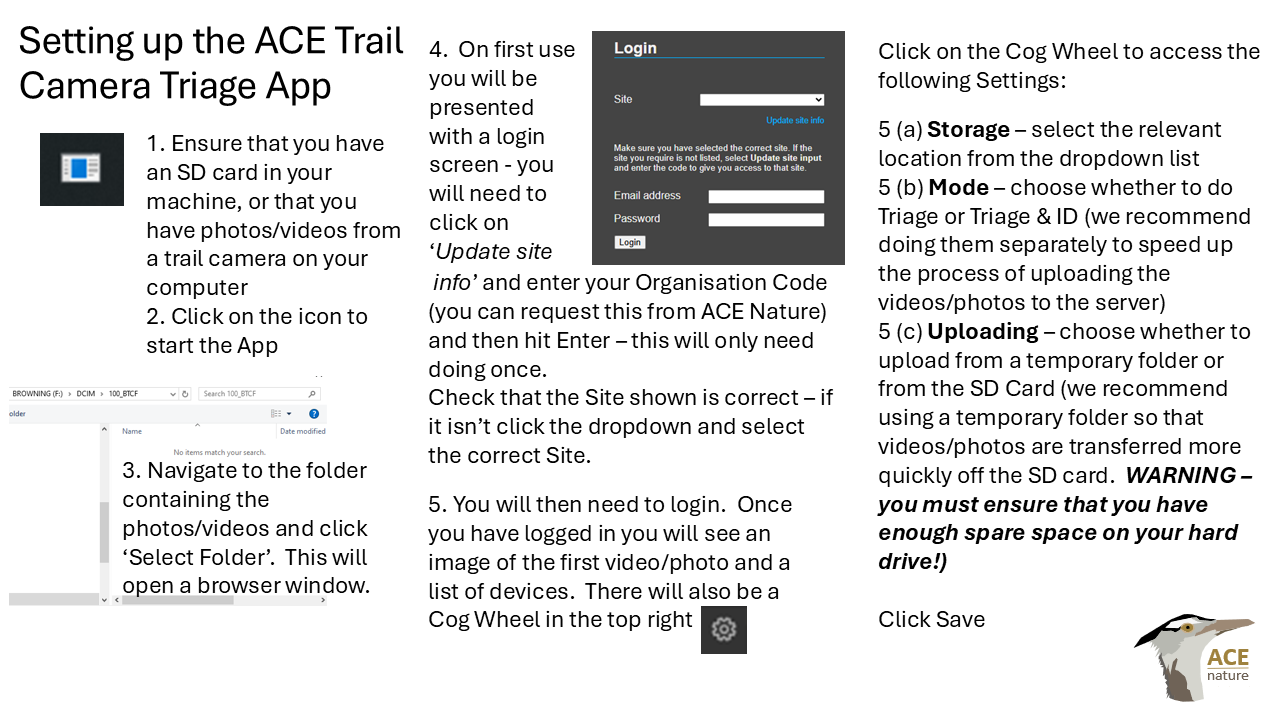
Setting up the App for first use
The image below shows how to set the Trail Camera Triage App up for first use. Alternatively, you can download a pdf guide. Please contact ACE Nature if you have any problems.
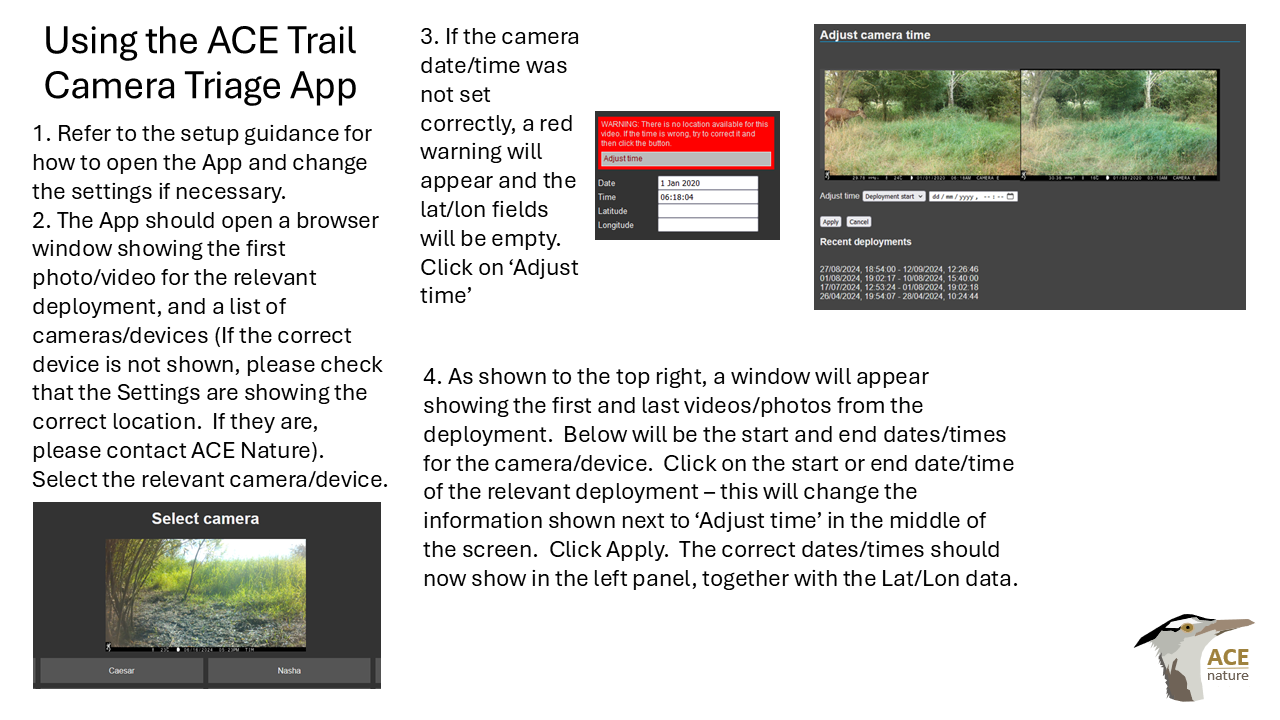
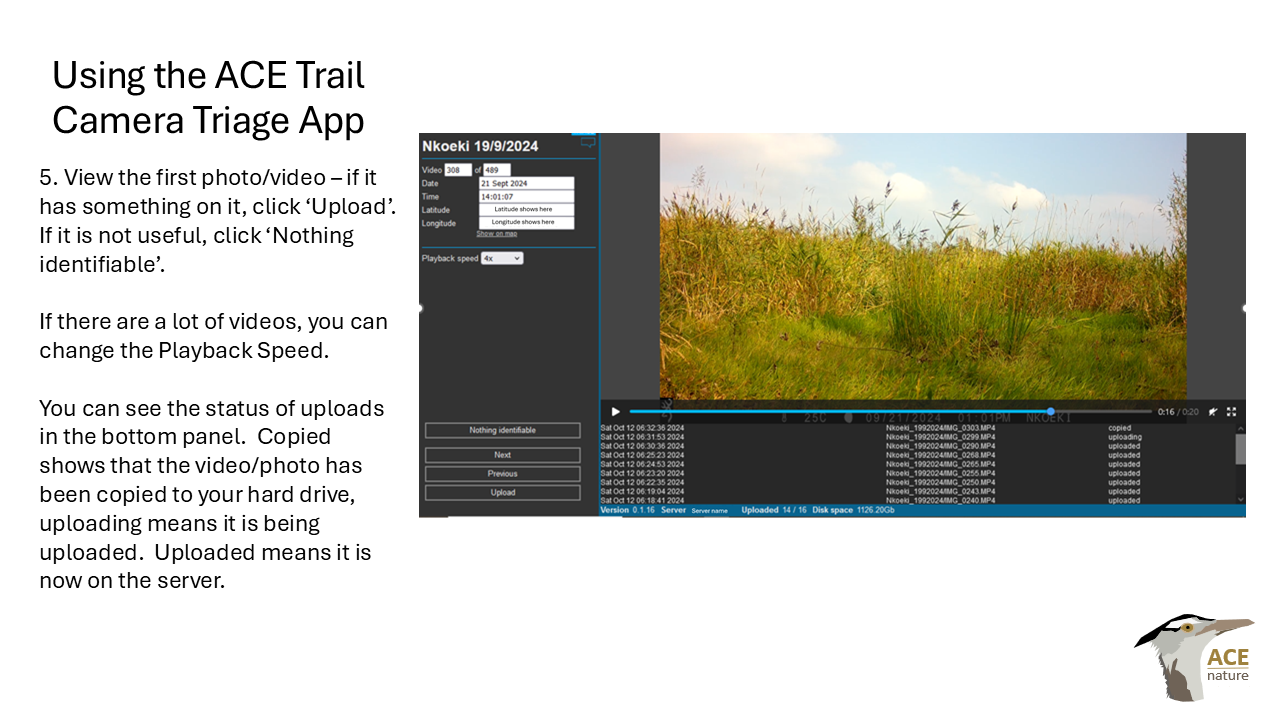
Using the App
The image below shows how to use the Trail Camera Triage App. Alternatively, you can download a pdf guide. Please contact ACE Nature if you have any problems.
Questions or problems?
Get in touch and we'll help you get set up.